How to Use PlayerToPlayers
Choose a match, narrow the combinations, then create the team cards you want to review.
Screenshots show example screens from an earlier version. Match names, counts and available options will vary. In the current calculator, dropdowns show only valid options and changing a filter resets later selections, as explained below. Open any image at full size for a closer look.
1. Choose your platform and match
Start in the Cricket Team Generator panel. Choose the platform from the selector at the top, then select these match details in order:
- Gender: choose the available men's or women's category.
- Type: choose International or League.
- Series: choose a format such as T20 or ODI, or an available league.
- Match: choose from the matches available for those selections.
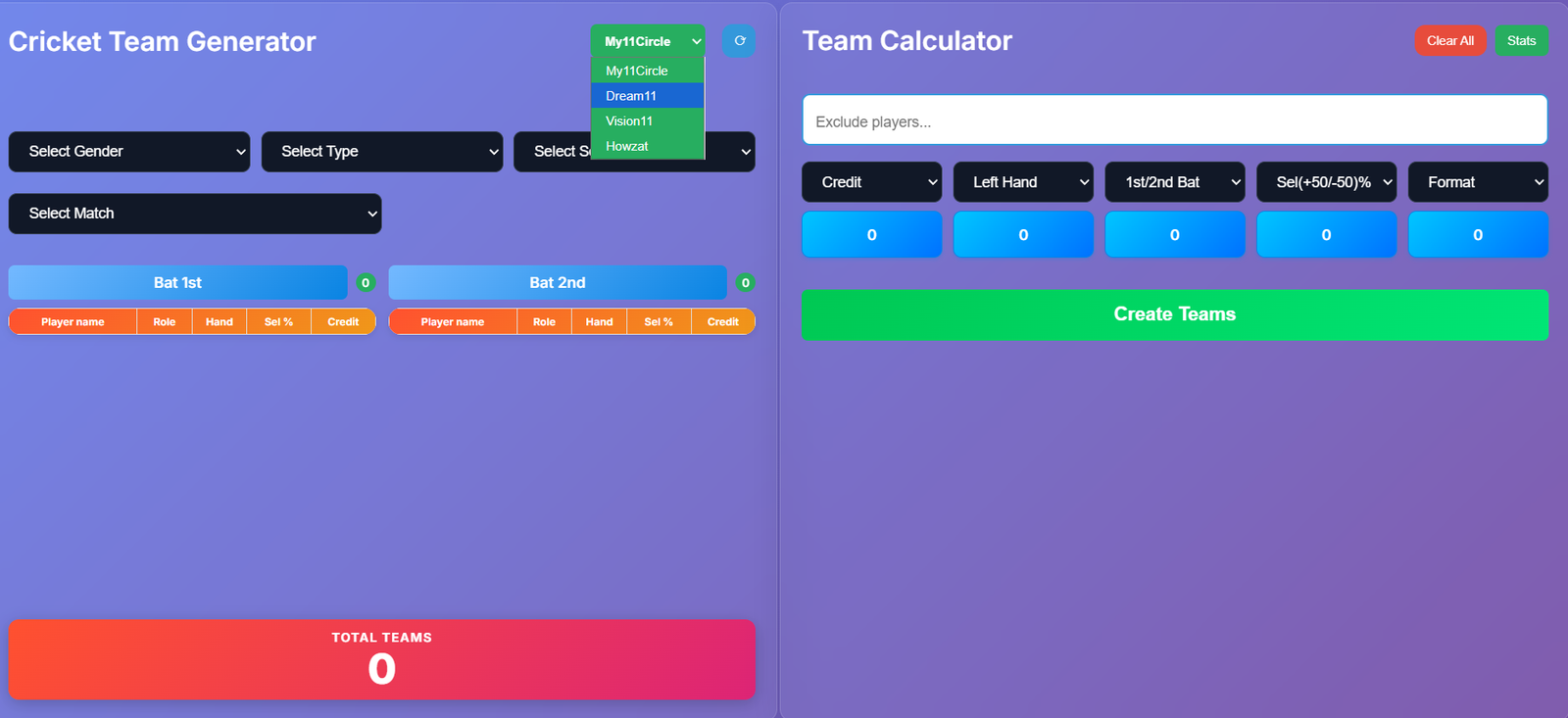
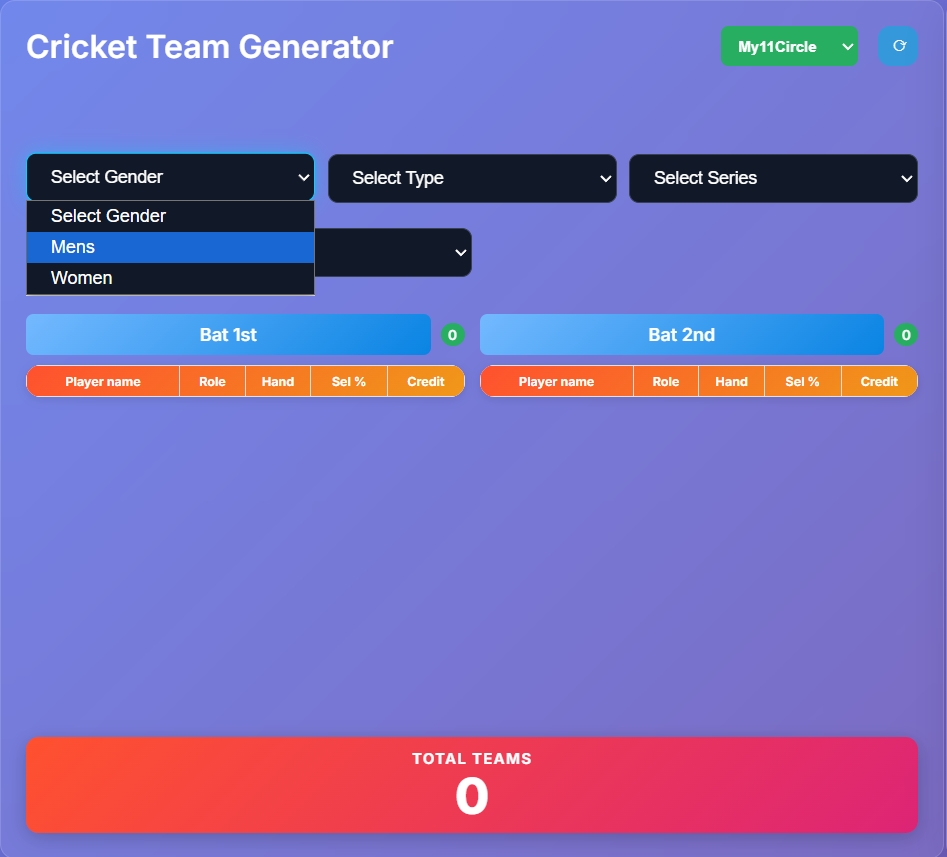
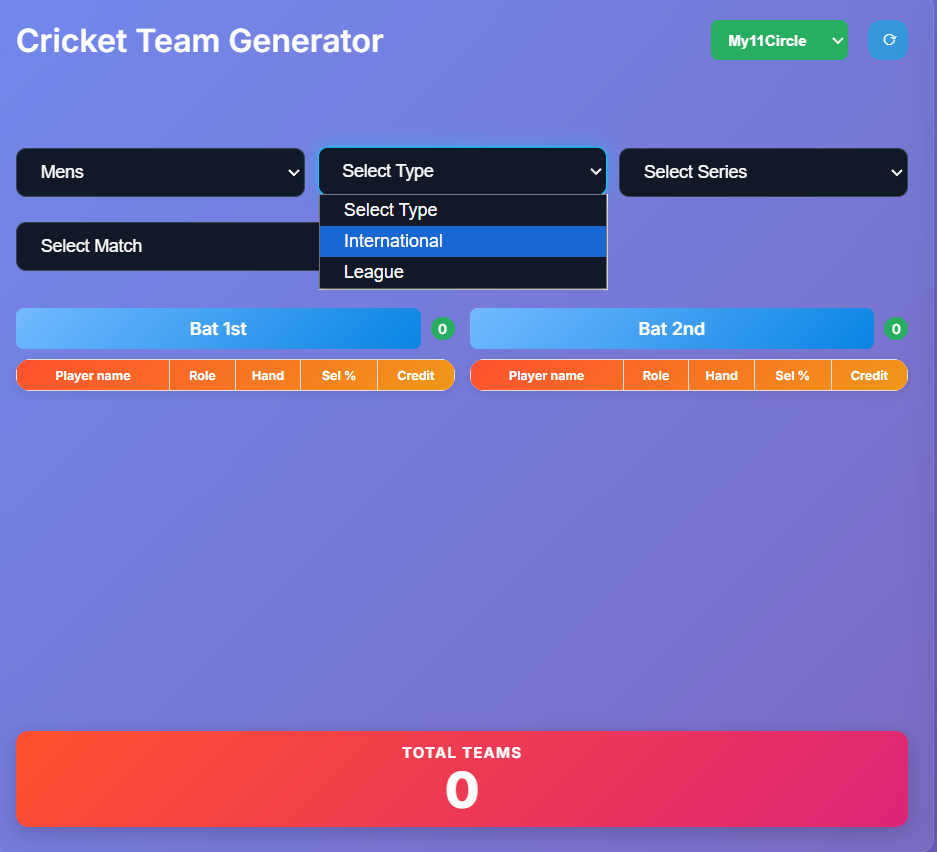
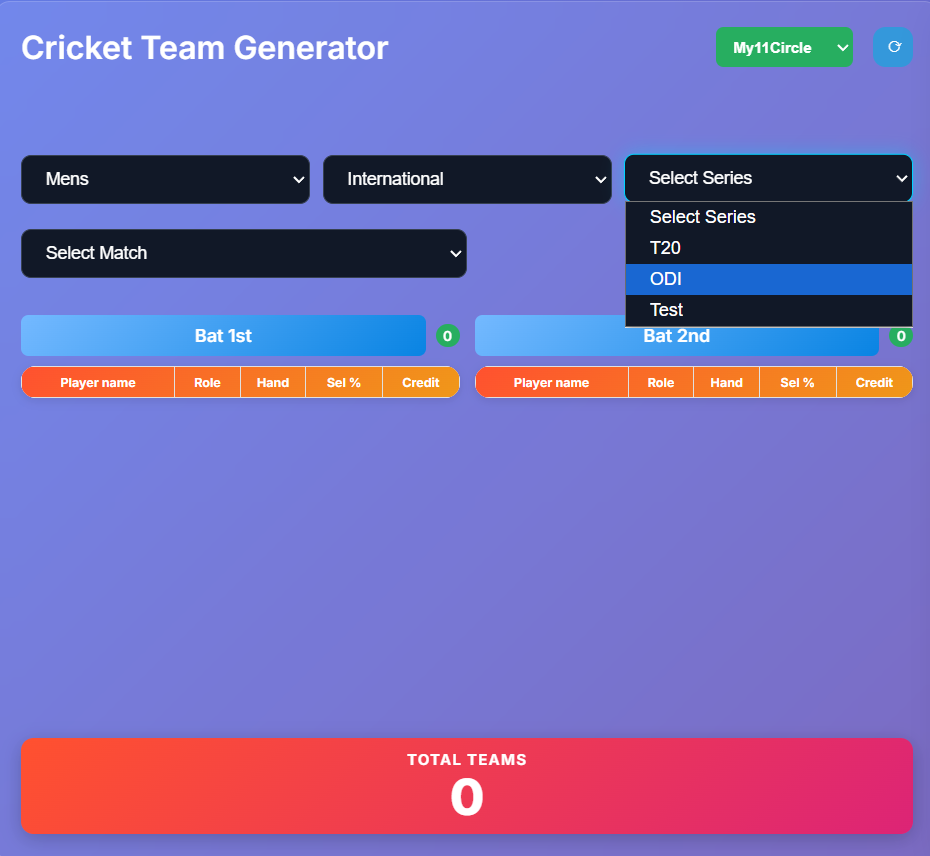
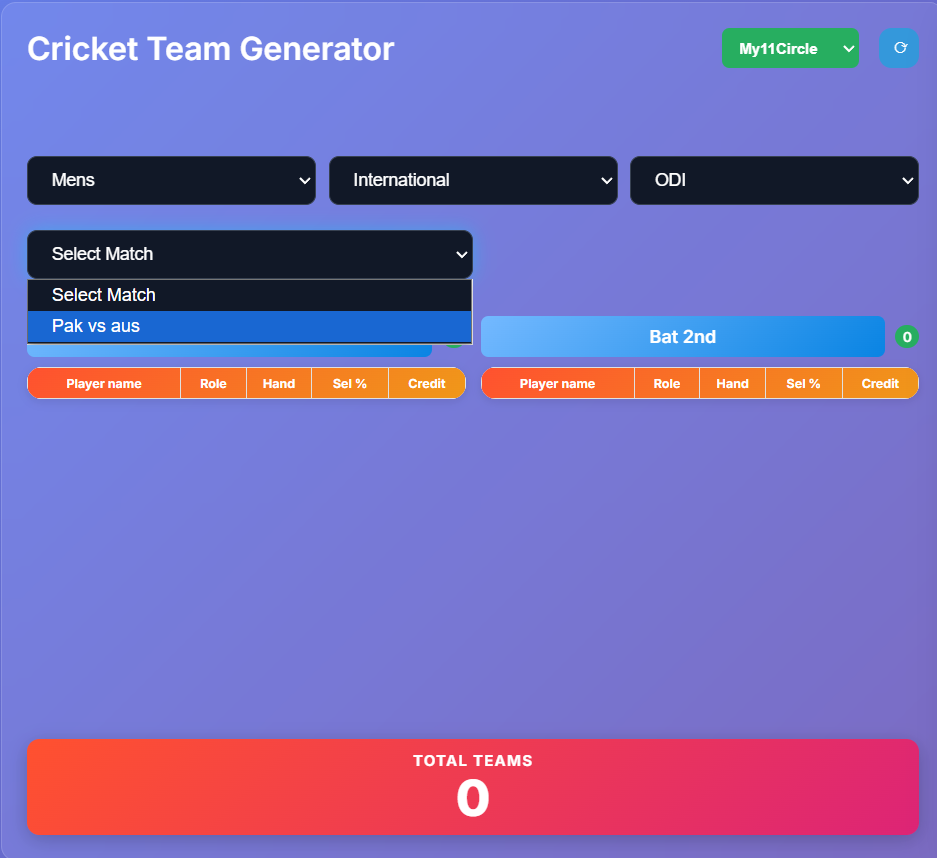
For example: Women → International → T20 → an available match. Match availability depends on the data currently on the website; not every category will have a match.
If you change the category or type, select the series and match again. Allow the lineup and Total Teams count to finish loading before using the calculator. A large set of combinations may take longer on some devices.
2. Read the lineup and Total Teams
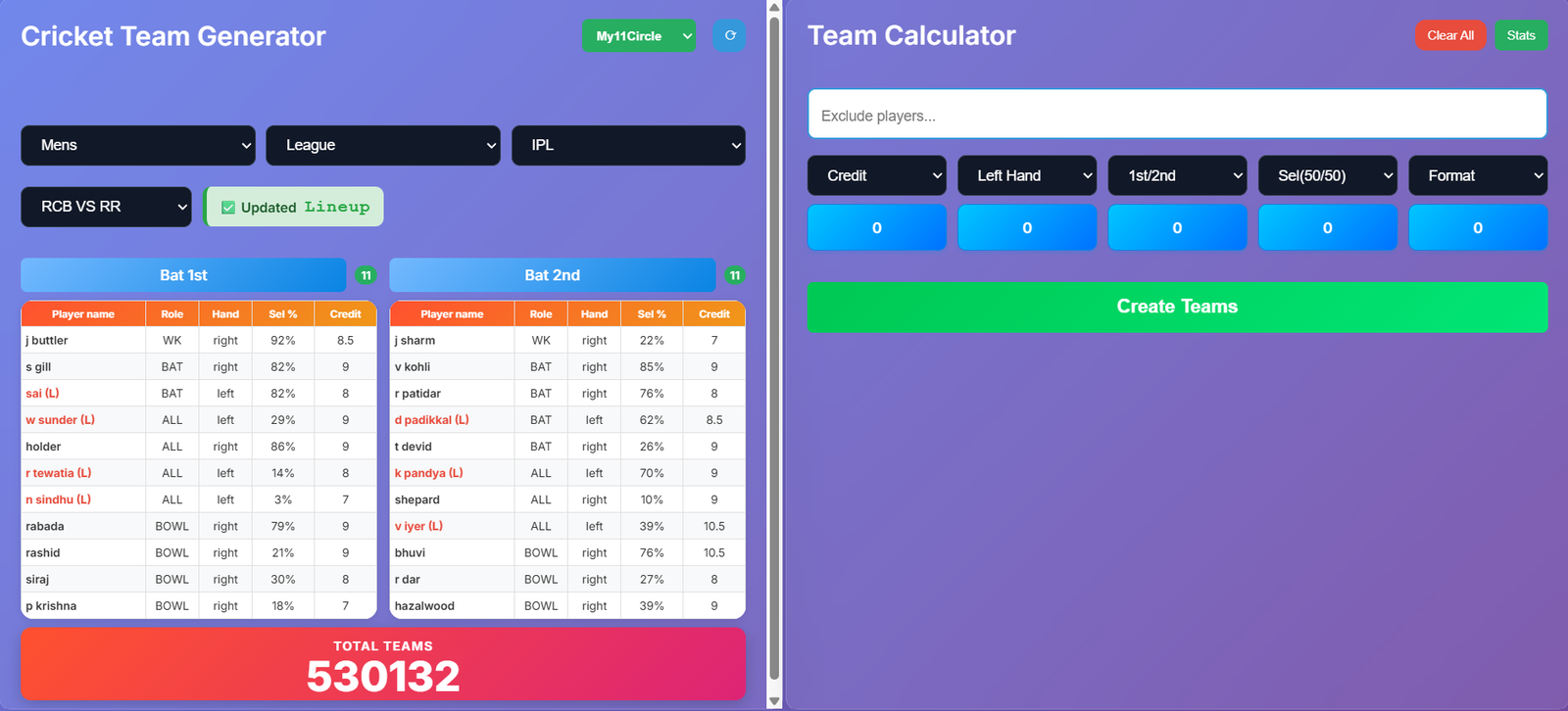
Bat 1st and Bat 2nd show the two sides as recorded in the available lineup data. Each player has a name, role, batting hand, selection percentage and credit value.
Roles are shown as WK (wicket-keeper), BAT (batter), ALL (all-rounder) and BOWL (bowler). Review the displayed values for your chosen platform.
Total Teams is the starting number of combinations calculated from this lineup. The current generator selects 11 players, requires at least one player in each of the four roles, and accepts totals up to 100 credits. It does not verify every contest-specific rule.
Total Teams stays as the starting count when you use calculator filters. The blue boxes beneath selected filters show the remaining count at each step. An unused filter showing 0 does not mean that the entire match has no combinations.
3. Understand the five calculator filters
The Team Calculator panel narrows the combinations for the selected match. You can start with any filter and use as many or as few as you need.
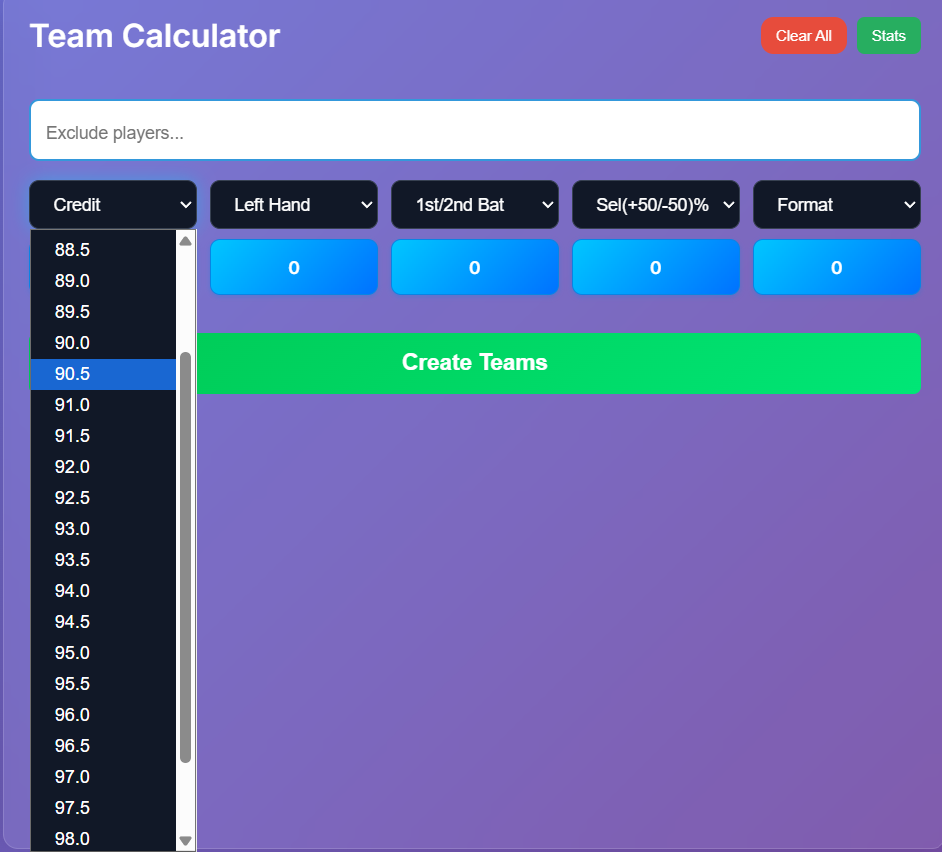
Credit: exact team total
Select the total credits you want, such as 89.0. This matches teams with that exact total, shown to one decimal place; it is not a “less than or equal to 89” budget filter.
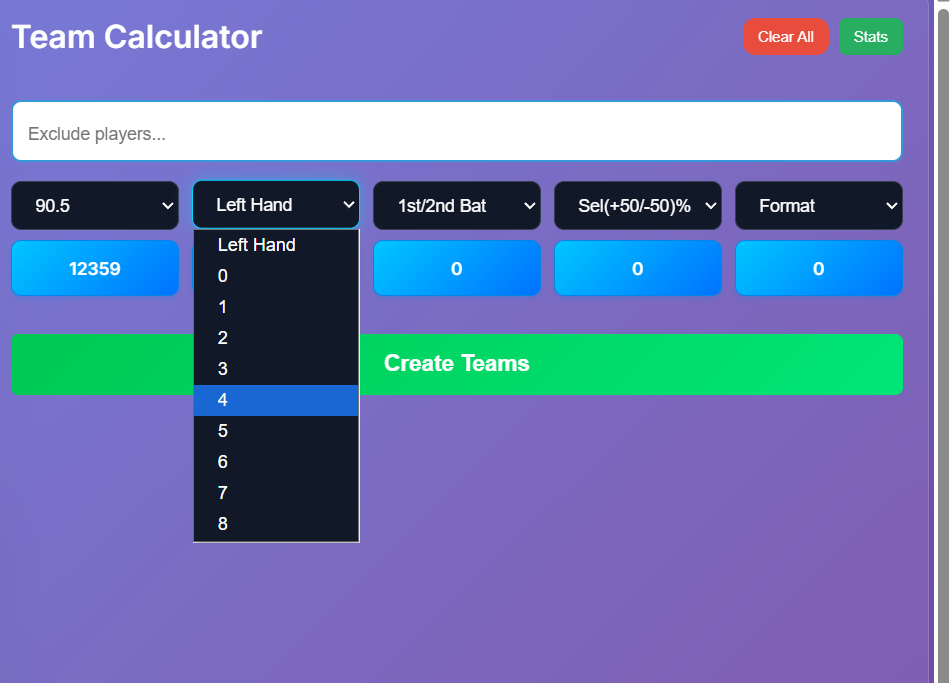
Left Hand: number of left-handed players
A value of 3 keeps teams containing exactly three players marked left-handed in the lineup, across all roles. The dropdown only offers counts available in the remaining combinations.
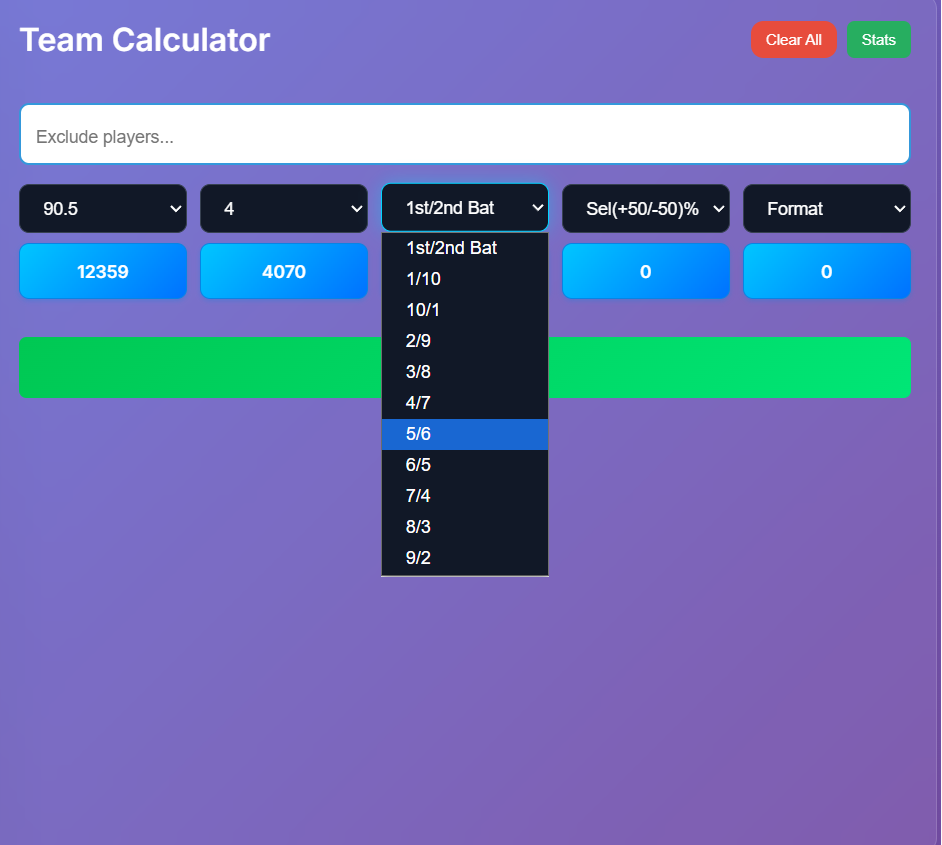
1st/2nd Bat: players from each batting side
6/5 means six players from the side marked Bat 1st and five from the side marked Bat 2nd. It does not mean opening batters versus middle-order batters, or individual batting positions.
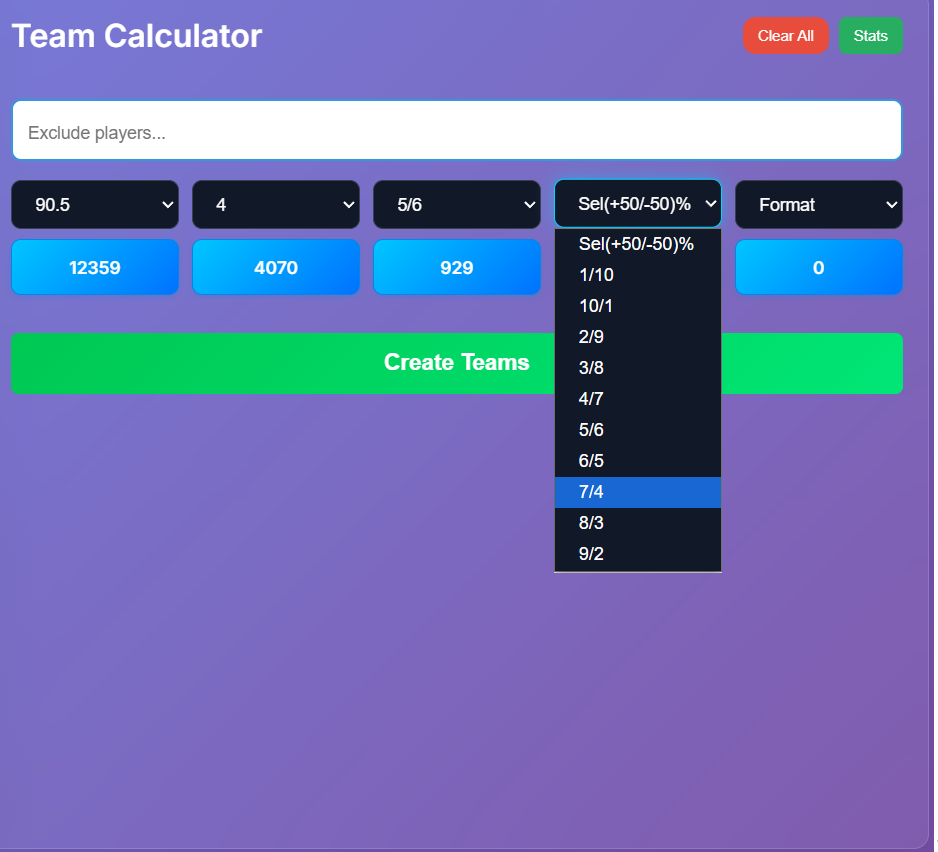
Sel(+50/-50)%: selection-percentage split
7/4 means seven players with a recorded selection percentage of 50% or above and four below 50%. Exactly 50% belongs to the first group. These percentages describe the supplied data, not the probability of a player performing well.
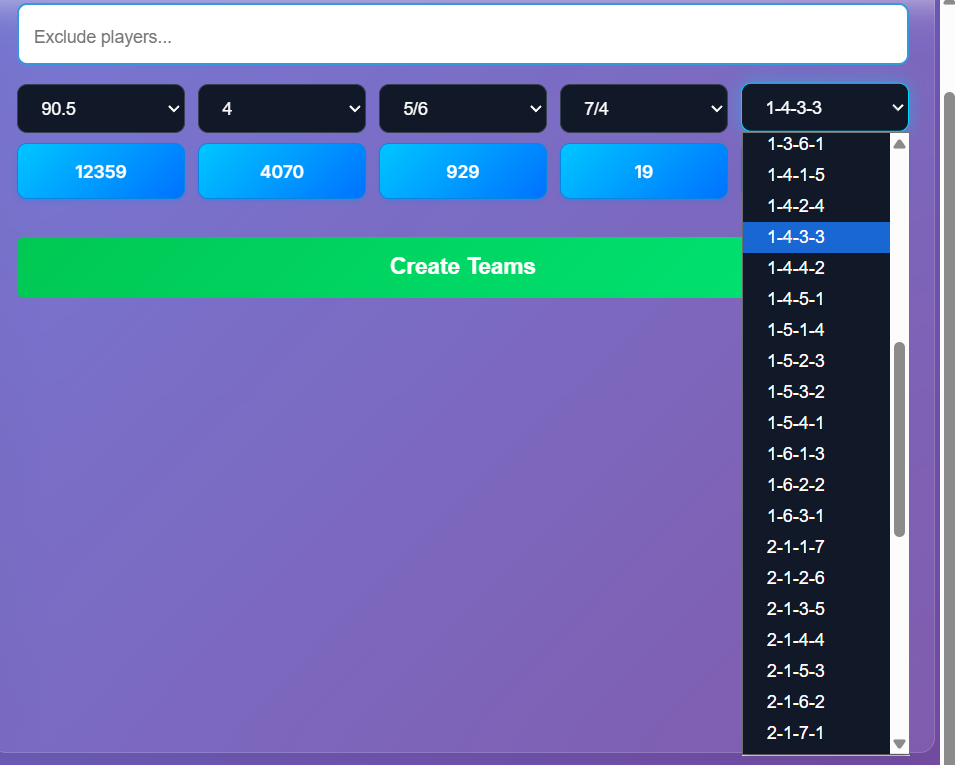
Format: role composition
The order is always WK–BAT–ALL–BOWL. For example, 1-4-2-4 means one wicket-keeper, four batters, two all-rounders and four bowlers: eleven players in total.
4. Build and change your filter chain
Filters work in the order you select them. Each new filter applies to the teams left by the earlier steps. Later dropdowns show only values that have matching teams in that remaining pool.
For example, you could select Format → Credit → Left Hand → 1st/2nd Bat. The count under Credit includes the Format choice; the count under Left Hand includes both earlier choices. The count under the last selected filter is the final number remaining.
If you change Credit in this example: Format stays selected, Credit uses your new value, and Left Hand plus 1st/2nd Bat reset. Later selections reset even if their old values would still be possible. Clearing an earlier filter also resets the choices made after it.
Choose the later filters again as needed. You can start a new chain in a different order by using Clear All.
Changing any dropdown closes the displayed team cards and pagination. Counts and options update, but the cards stay closed until you click Create Teams again.
5. Exclude players
Type a player name from the current lineup into Exclude players... and press Enter. Use the name as listed; matching is not case-sensitive. A tag appears for each excluded player.
Teams containing an excluded player are removed from the calculator results. Click the player's tag to remove that exclusion. Counts and valid options are recalculated, and displayed cards close until you click Create Teams again.
Check the exclusion tags when you change matches. Use Clear All if you want to remove every exclusion and begin again.
6. Create, browse and download teams
Once the available combinations and your selections are ready, click Create Teams. You do not have to select every filter. The results open five cards per page; use Previous and Next to browse.
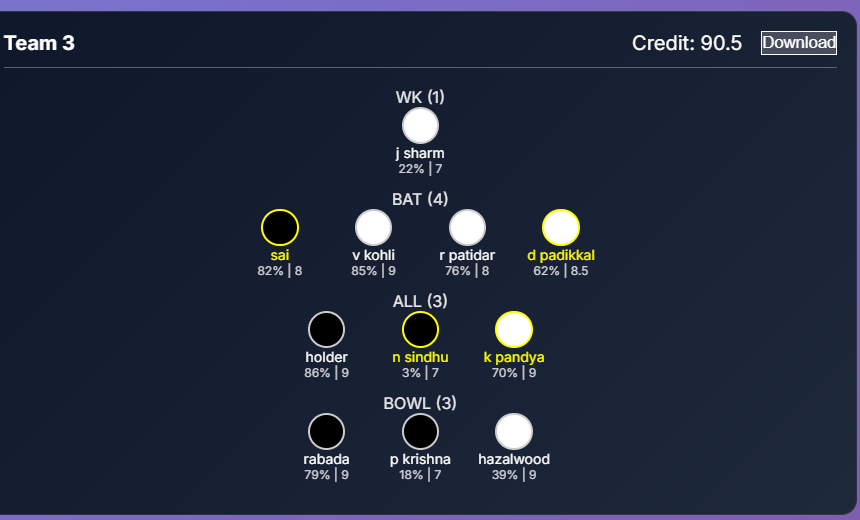
Each card shows its team number, total credits, and players grouped by WK, BAT, ALL and BOWL. Players are listed with their recorded selection percentage and credits.
- Black circle: a player marked as belonging to the batting-first side.
- White circle: a player marked as belonging to the batting-second side.
- Yellow name and border: a player marked left-handed.
Click Download on an individual card to save it as a PNG image. This saves a reference image; it does not submit or import a team into a fantasy platform.
Cards do not assign captain or vice-captain. Review those choices, the latest lineup, credits and contest rules on your selected platform before using a team.
7. Resets and troubleshooting
What does Clear All do?
It clears calculator filter selections and excluded-player tags, closes the cards, and restores the calculator to its starting pool for the current lineup. It does not require you to choose the match again.
Why did a dropdown option disappear?
There are no matching teams for that value under the earlier choices and current exclusions. Change an earlier choice, remove an exclusion or use Clear All to explore a wider pool.
Why did my cards disappear?
This is expected after a dropdown change, calculator reset or exclusion change. Finish selecting your options, then click Create Teams again.
Why is Create Teams unavailable?
The calculator may still be waiting for a lineup, or there may be no combinations for the current data and exclusions. Confirm the match has loaded, then review your exclusions and try Clear All.
What if I see “Error loading matches”?
The website could not load the match list. Try refreshing and selecting the match details again. If it continues, send the page address and selections through Contact Us.
Does “Updated Lineup” guarantee the final playing XI?
The badge reflects the configured lineup-time status on this website. Check the displayed players against the latest confirmed match information.
What does Refresh do?
The refresh button reloads the page and restarts your selections. The page also reloads after approximately 15 minutes without activity, so download any cards you want to keep.